Mission ControlExample data
Mission Control
One Page showing what each bot is doing, what waits on you, and which routines run next.
Prompt
By Alex Finn, from his post on X
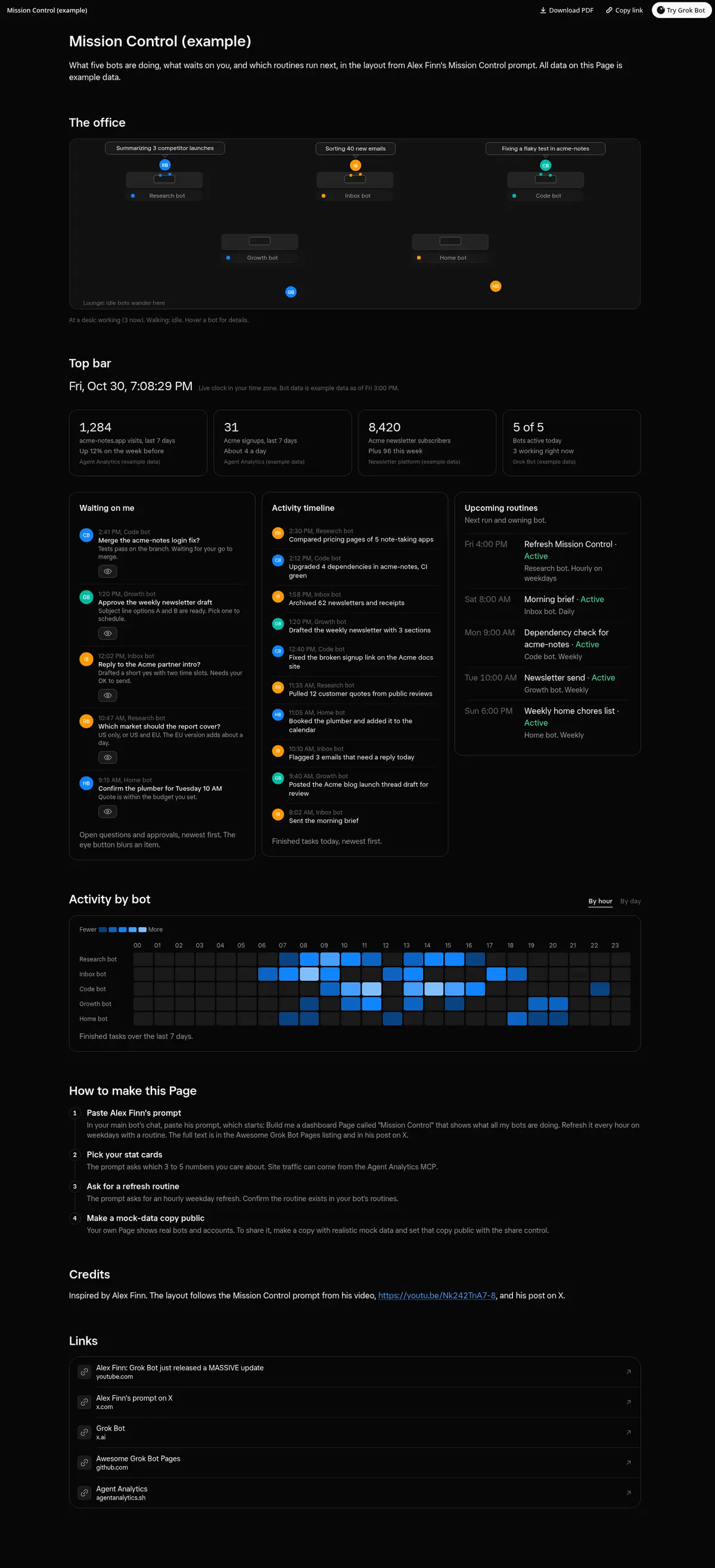
Build me a dashboard Page called "Mission Control" that shows what all my bots are doing. Refresh it every hour on weekdays with a routine.

Layout:
1. Top bar: a live clock and 3–5 stat cards for numbers I care about (ask me which ones, then pull them from my connected accounts).
2. Left column, "Waiting on me": every open question or approval my bots are waiting on me for, newest first. Each item gets an Open button that jumps straight to that bot's chat, and an eye button that blurs it so I can keep it private on camera.
3. Middle, "Activity timeline": tasks my bots finished, newest first, with each bot's picture and a one-line plain-English summary.
4. Right column, "Upcoming routines": my scheduled routines with their next run time and which bot owns each one.
5. Top of everything "The office": a fun 2D top-down office. Bots that are working sit at desks typing, with a little speech bubble saying what they're on. Idle bots wander around. Add a heatmap of activity by hour for the last 7 days.

Use only real data from my bots, routines and accounts. If something is missing, show it as empty instead of making it up. Make it dark and clean.
How to use it
- Copy the prompt and paste it into a chat with Grok Bot.
- Swap in your own bots, accounts or data sources where the prompt asks for them.
- If the prompt does not create a refresh routine, ask Grok Bot for one.
- To share your version, make a copy with mock data and make that copy public. Then get it listed.